A workspace that keeps its files
By default a MicroVM's files are gone when it stops. This walkthrough puts /workspace on Amazon EFS, so a new MicroVM picks up where the last one left off.
Before you start
- The starter image, or another image with the EFS tools: see Quick start.
- A VPC with private subnets that route to a NAT gateway. The app doesn't create VPCs or NAT gateways; it uses one you choose.
Steps
Make a network connector
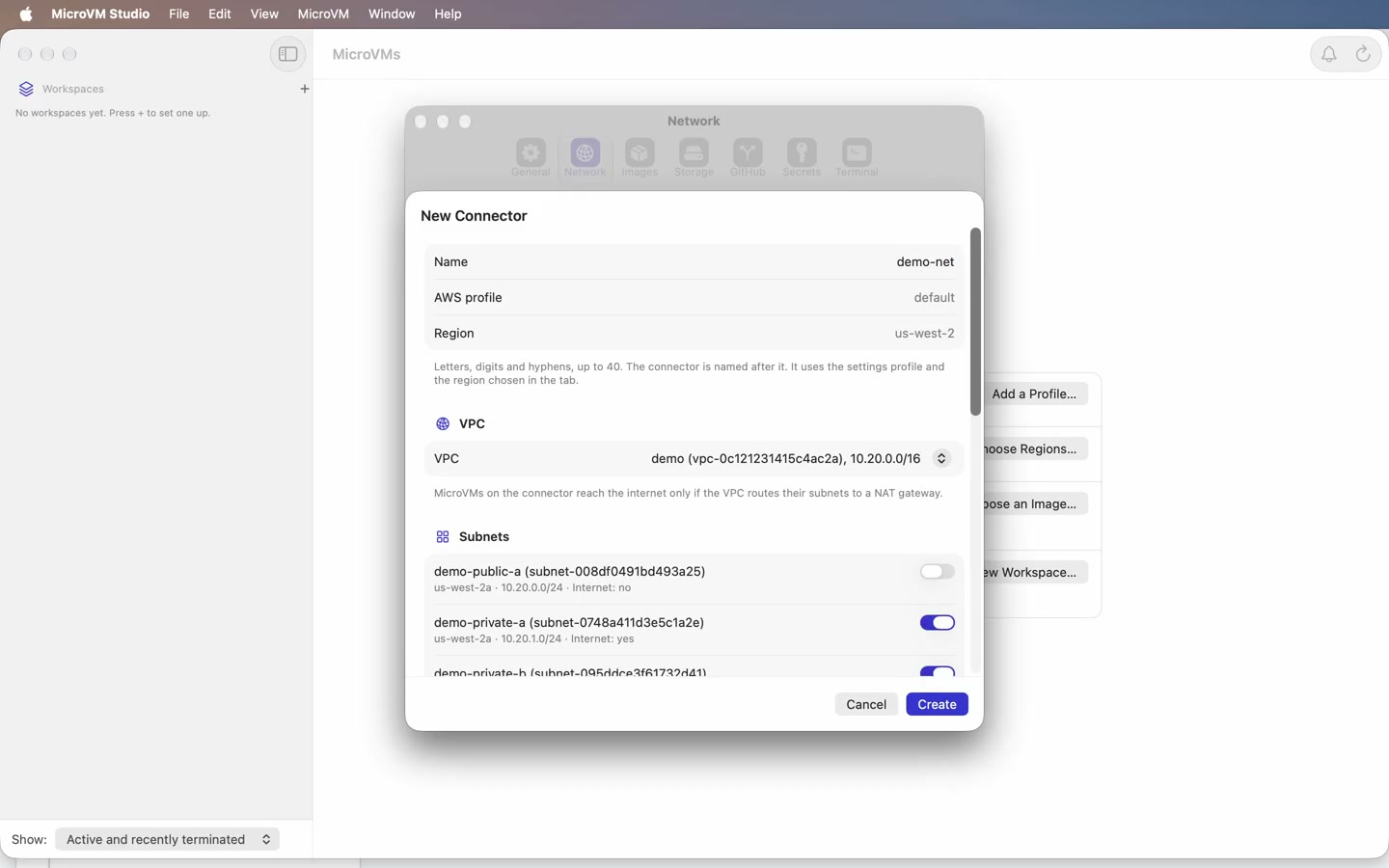
In Settings → Network, press New Connector…, name it and choose your VPC. Each subnet says whether MicroVMs there reach the internet. Tick the private ones that say Internet: yes: a subnet with only an internet gateway doesn't work, because MicroVMs get no public address. Create takes about four minutes.
Make a file system
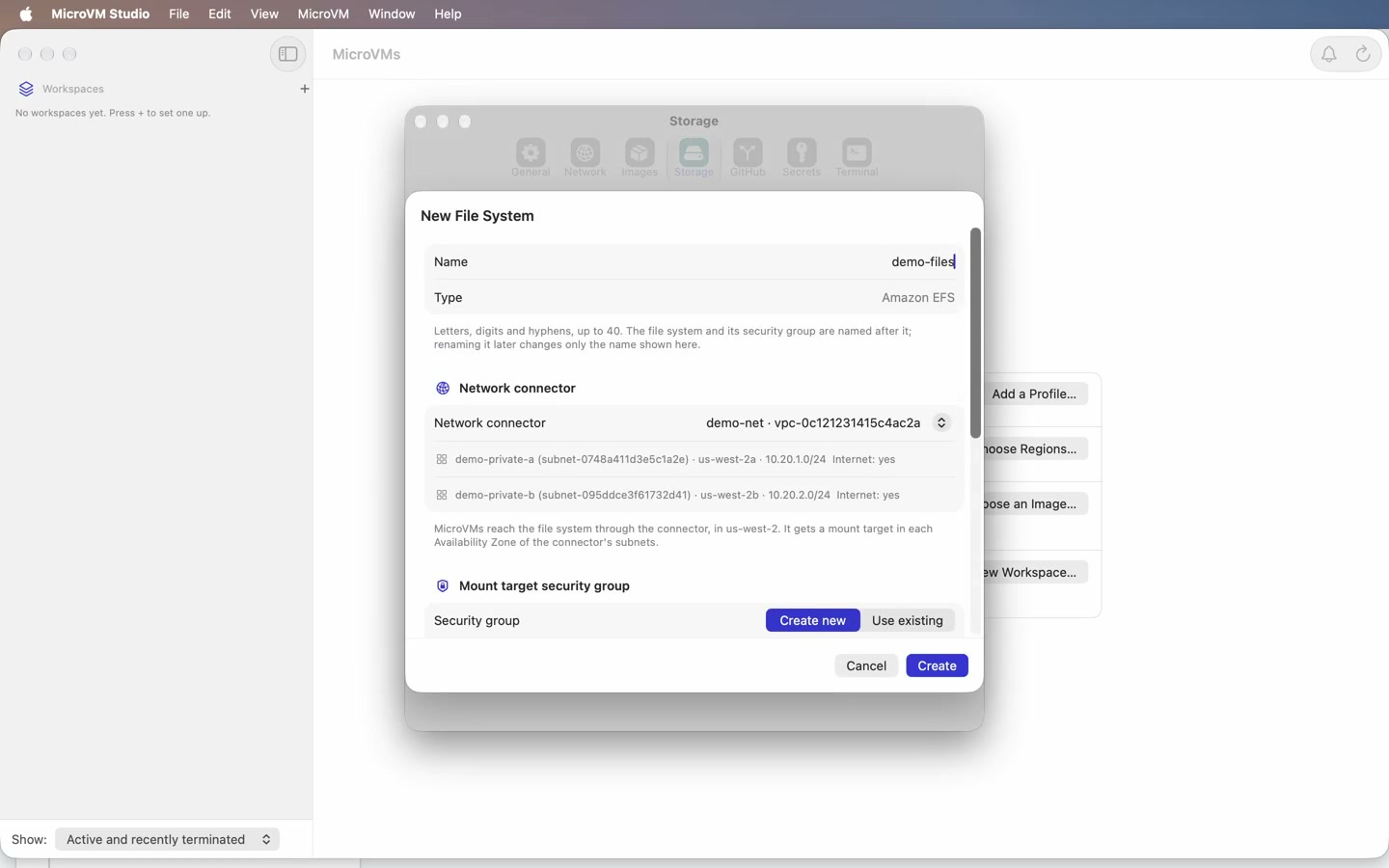
In Settings → Storage, press New File System… and name it. The connector you just made is selected. Create makes an encrypted EFS file system with a mount target in each zone, in about a minute and a half.
Make a workspace with Claude Code
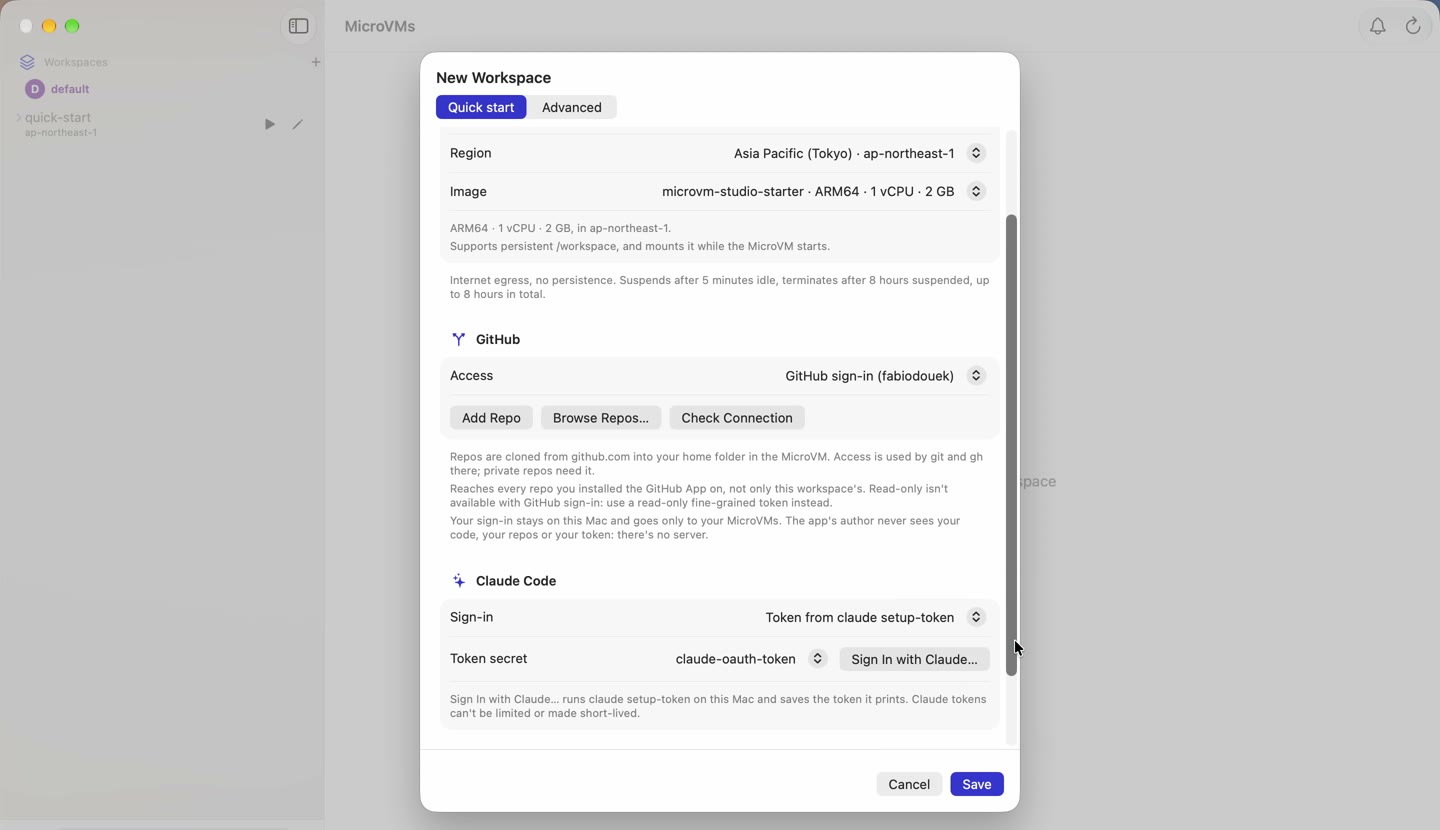
Press New Workspace… and name it. Under Claude Code, choose the token you saved in the quick start, so Claude Code is signed in inside the MicroVM.
Give the workspace the file system
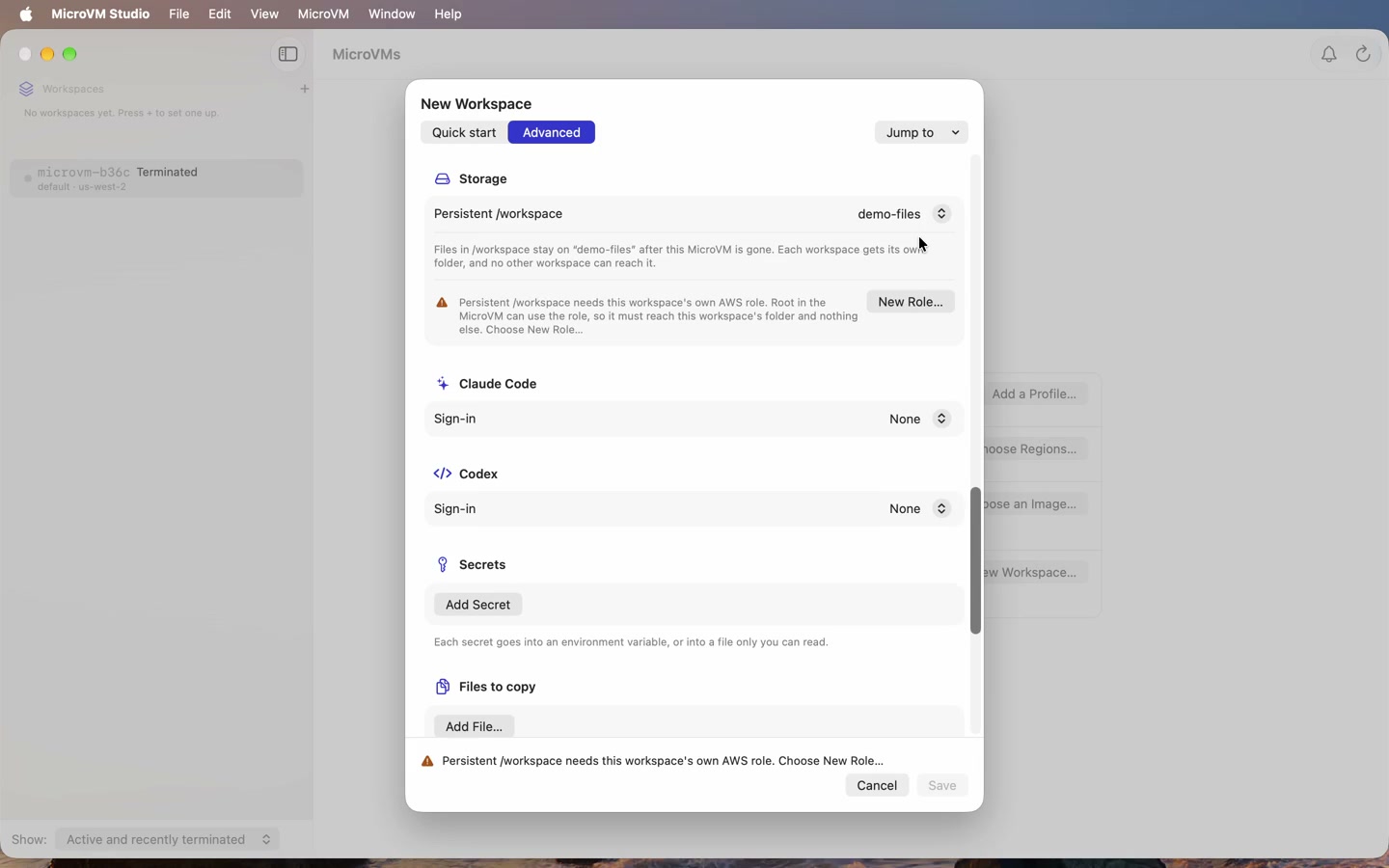
Switch to Advanced, use Jump to → Storage and choose the file system under Persistent /workspace. The network connector locks to the file system's own. Storage needs a role of the workspace's own: New Role… offers one named after the workspace, and Create Role makes it. Then Save.
Launch and write something
Launch the workspace.
/workspaceis the EFS mount, in a folder that only this workspace can reach. Runcd /workspace, thenclaude, and ask it to write a note there.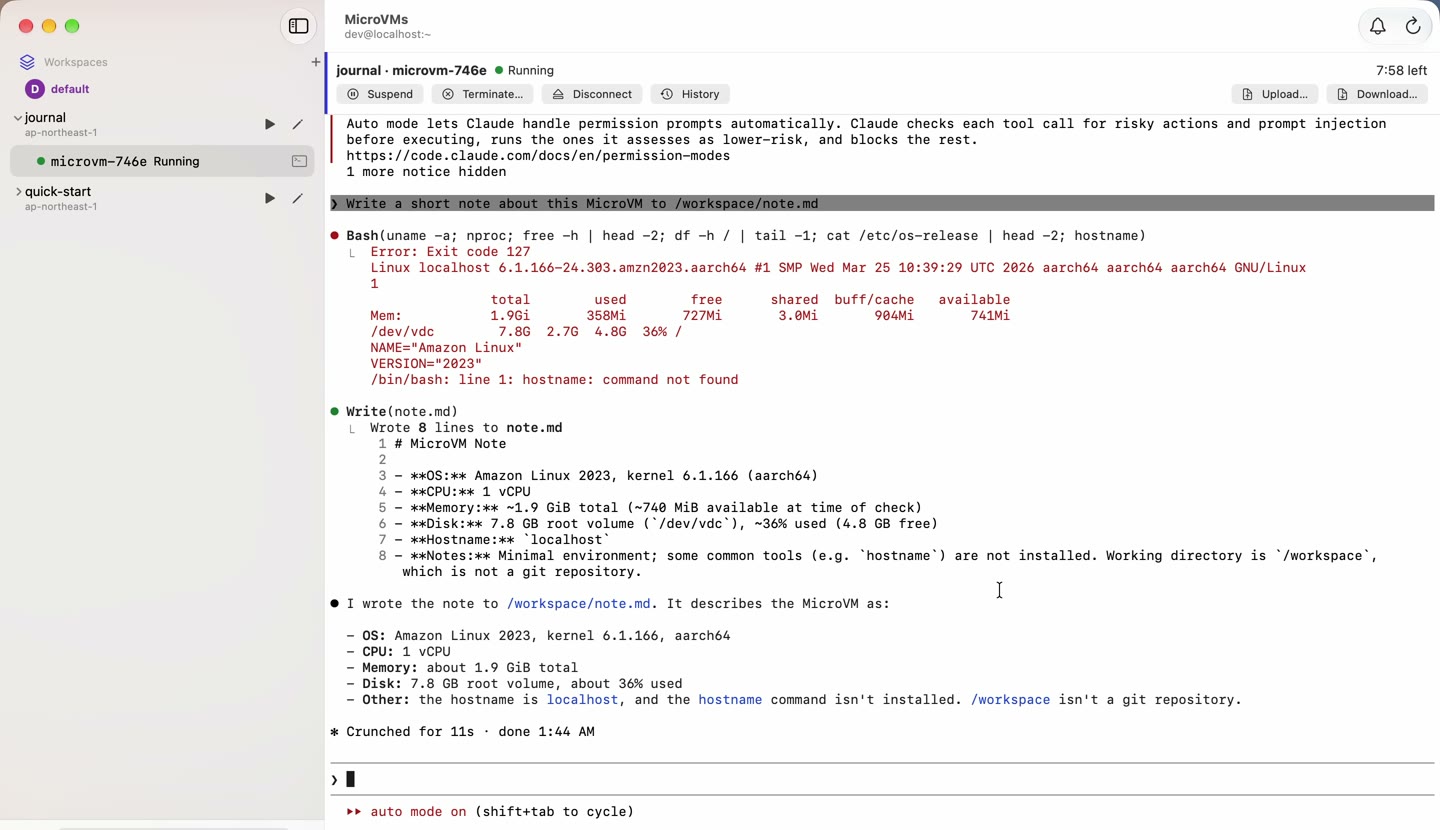
Terminate, then launch another
Terminate… stops the MicroVM for good, and everything on its own disk goes with it.
/workspaceisn't on that disk: it's kept on EFS. The terminated MicroVM's page offers Launch Another, which starts a new MicroVM from the same workspace and mounts/workspaceagain.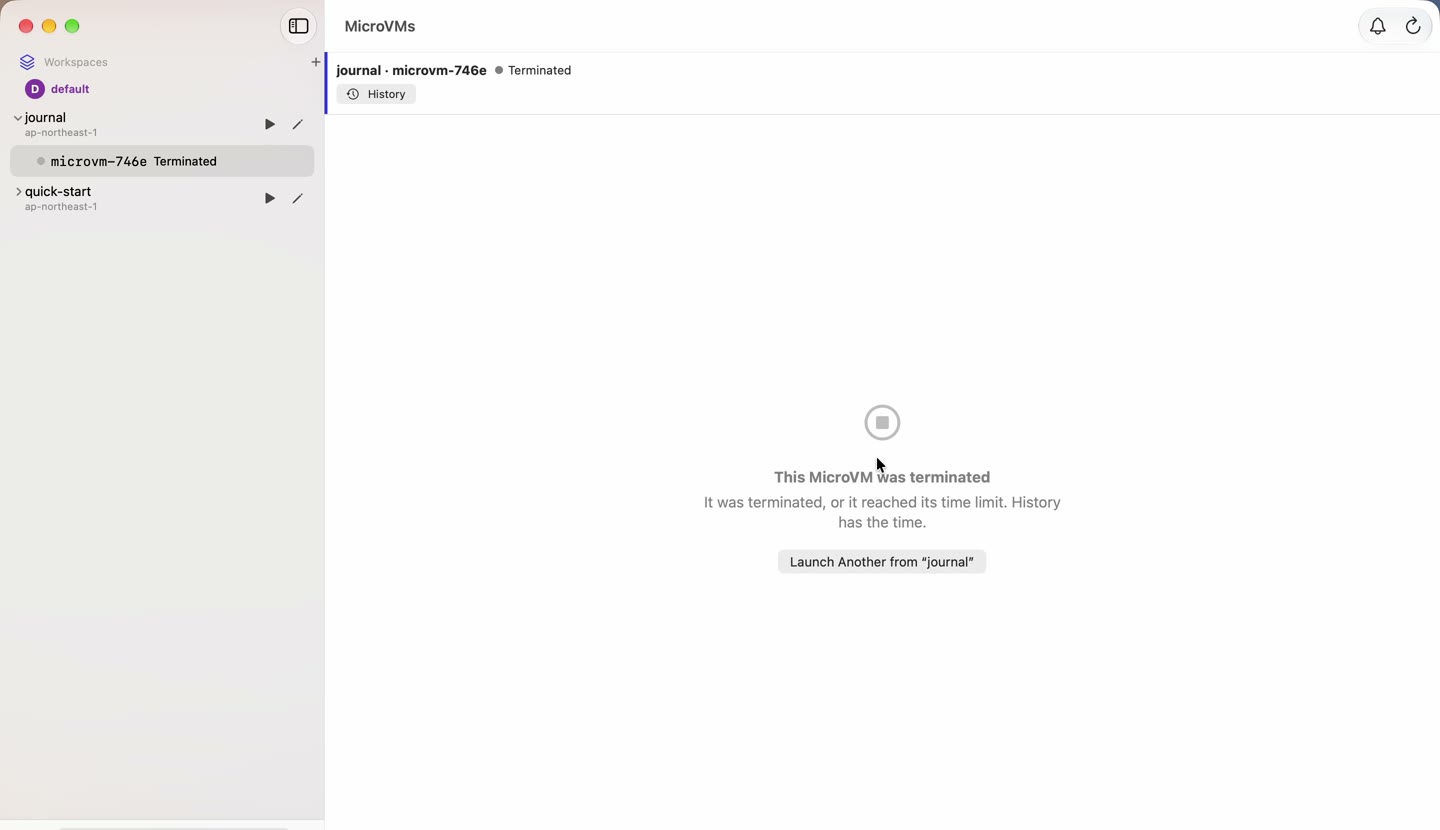
The files are still there
The new MicroVM mounts the same folder, so the note is where the first one left it. Repos, with their uncommitted work, are cloned into
/workspacetoo, so they carry over. What's outside/workspace, such as the home folder, starts fresh.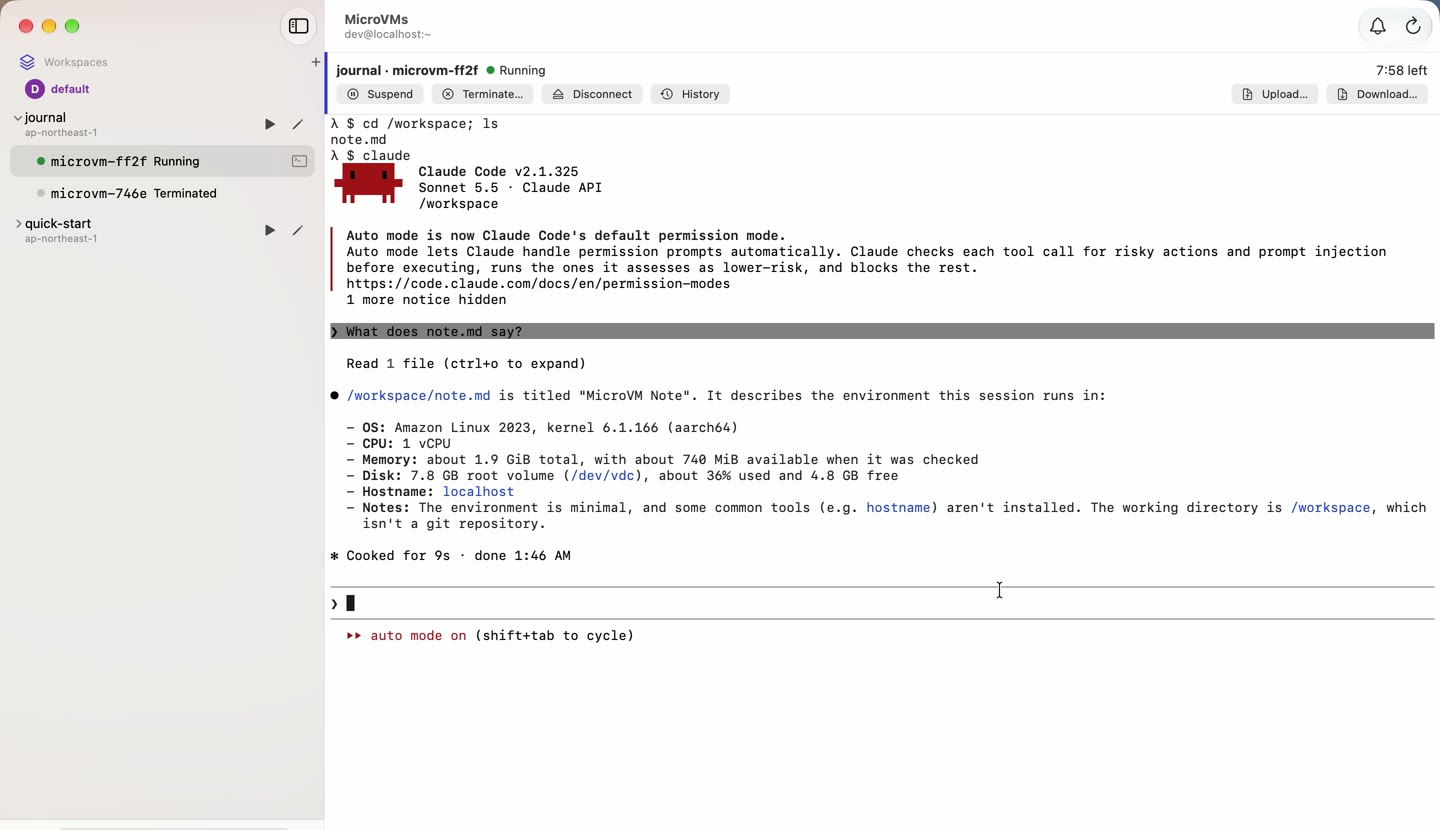
Cleaning up
Delete in this order, each in Settings: the workspace's storage choice (or the workspace), then the file system in Storage, then the connector in Network. The app says why when something can't be deleted yet. Deleting a file system deletes every workspace's files on it.
More detail: Persistent /workspace and Network Connectors in the reference.